Feature
Mol-Bhav Guard: stop staff selling below your lowest price
How do I stop my staff from selling below my price?
In Tap & Bill, set a lowest price for each item (and your cost if you like; staff never see it), set a staff discount limit, and choose Ask for my PIN in Settings. When a staff member bargains a piece below the lowest price, or gives more bill discount than the limit, the bill saves only after you type your 4 to 6 digit PIN at the counter. Your own bills are never stopped, and the owner report shows each staff member’s discount and every sale below the lowest price.
Most clothing shops sell by mol-bhav. An experienced salesman knows how far to come down. A new one, in a rush to close the sale, gives a ₹1,199 pair of jeans for ₹750. The bill looks normal, the cash is in the drawer, and the owner never finds out that the piece went at a loss.
Owners have handled this for generations with a secret cost code on the price tag. It works until staff change, and nobody checks the bill after the sale. Mol-Bhav Guard puts the rule inside the billing app: you set the lowest price once, staff see only that lowest price when they go below it, never your cost, and you decide whether such a bill needs your PIN.
It is part of every plan, works in the Android app and on the computer, and has no running cost: no SMS or OTP is sent, the PIN is typed on the counter device.
What you get
- Lowest price for each item (category), set by the owner
- Optional cost price per item, seen only on the owner login
- Optional rule: lowest price = cost + your minimum margin %
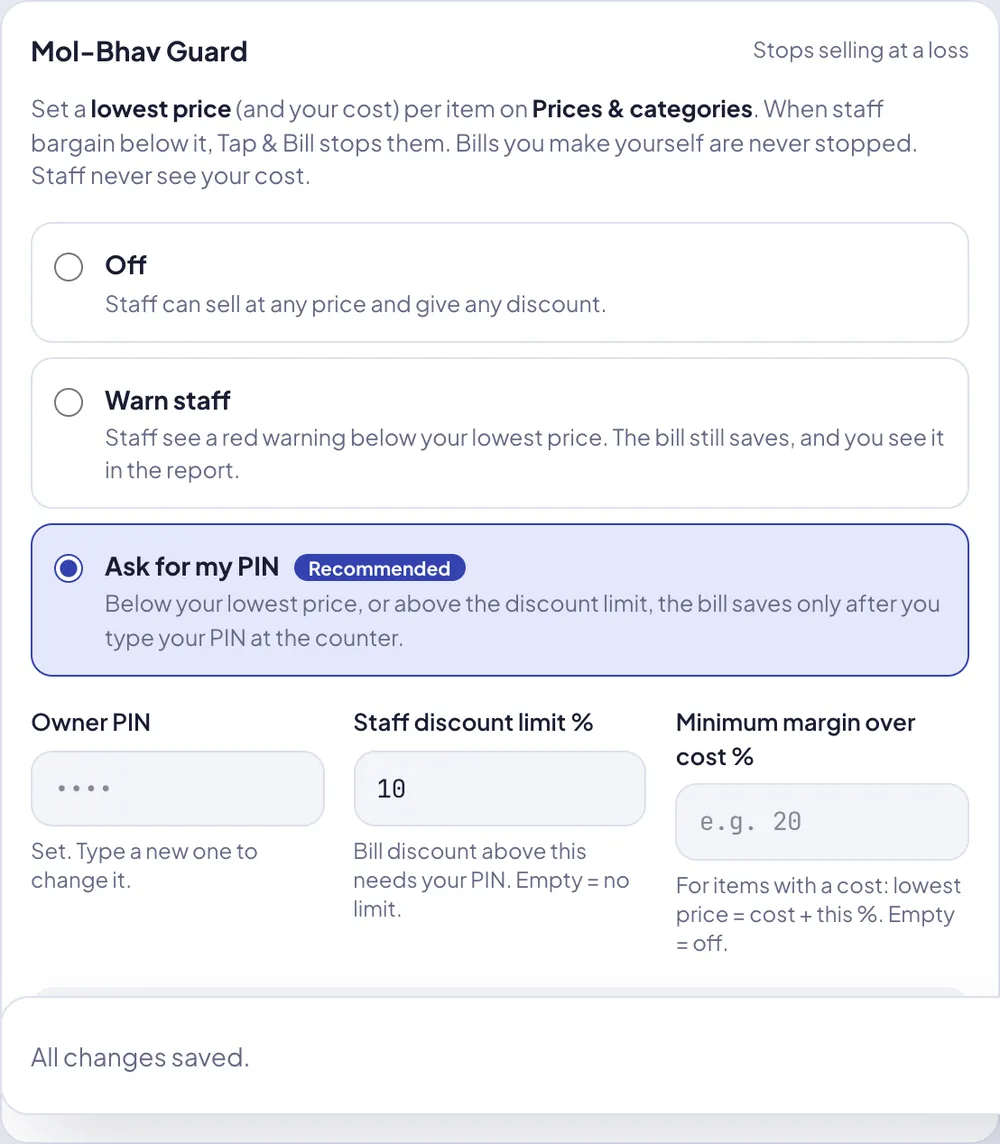
- Staff discount limit % for the bill discount
- Three modes: Off, Warn staff, Ask for my PIN (recommended)
- Each piece is checked after its share of the bill discount, so a big discount can’t hide a loss
- Bills made on the owner login are never stopped
- Android app and web billing, with screens in English, Hindi and Gujarati
- Offline bills are never lost; ones without your approval are marked for you
- Owner report: discount and below-lowest-price sales per staff member, and profit on items with a cost price
How it works
Set lowest prices
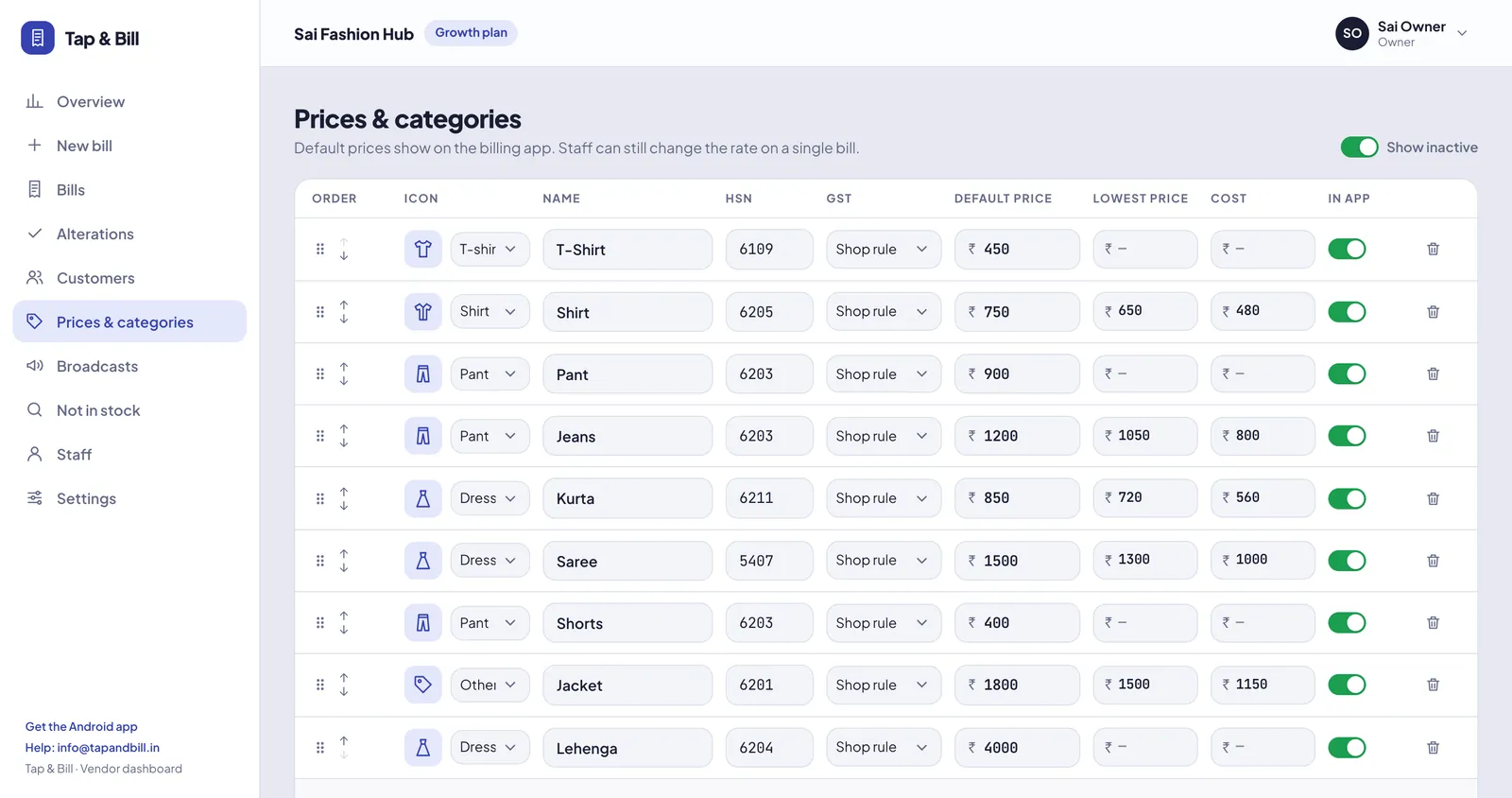
On Prices & categories (computer) or the category screen in the app, add a lowest price for each item, and your cost if you want profit in reports.
Pick how strict
Settings → Mol-Bhav Guard: Off, Warn staff, or Ask for my PIN. Set your 4 to 6 digit PIN and, if you like, a staff discount limit %.
Staff bill as usual
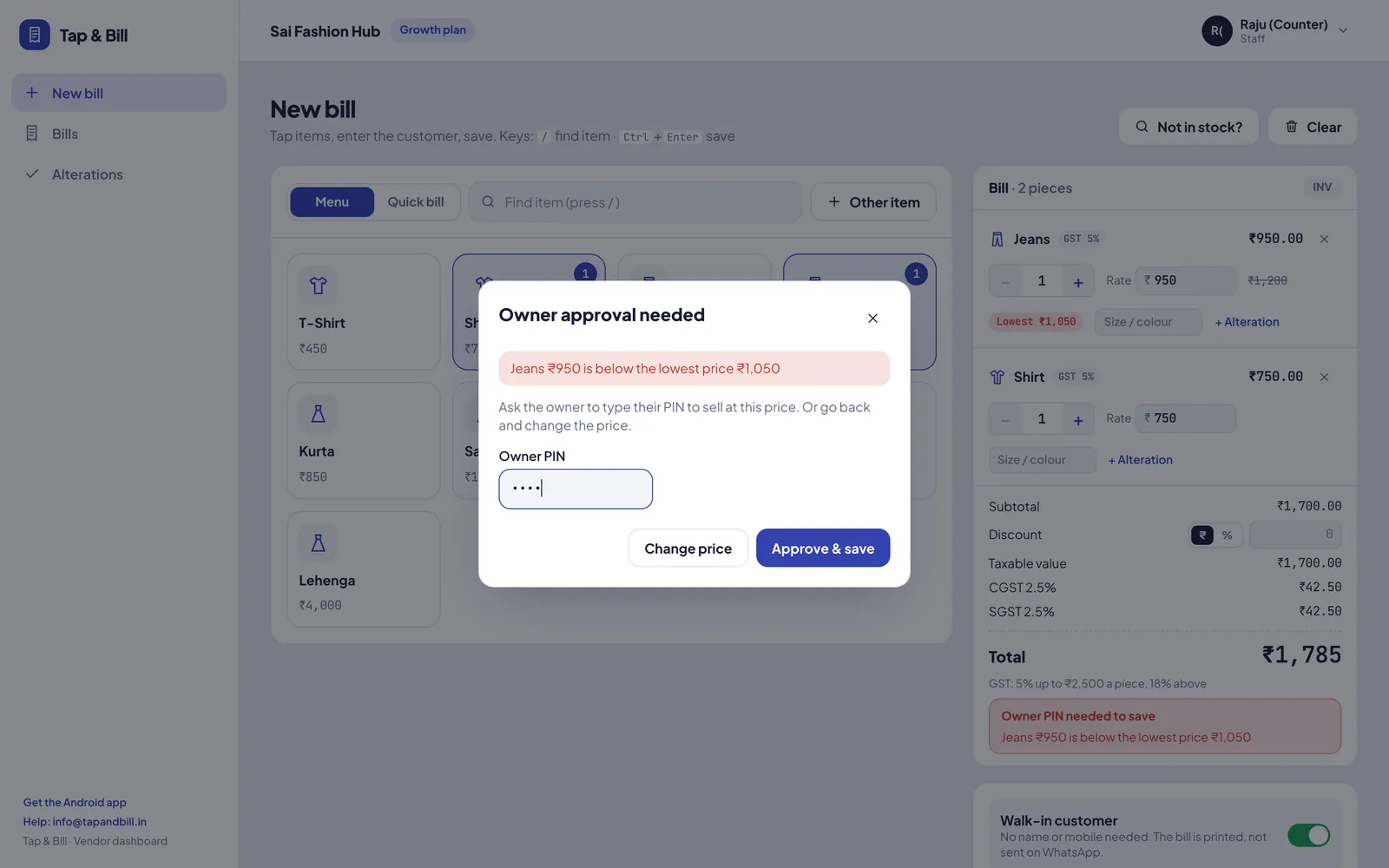
Above the lowest price nothing changes. Below it, the line shows “Lowest ₹850” and a red note says why.
You approve, or they fix it
Type your PIN on the counter phone or computer to allow the sale, or staff change the price. Check the report every week.
Example: jeans with a ₹850 lowest price
The owner sets these on Prices & categories, a staff discount limit of 10%, and the mode Ask for my PIN:
| Item | Tag (default) price | Cost (owner only) | Lowest price |
|---|---|---|---|
| Jeans | ₹1,199 | ₹700 | ₹850 |
| Shirt | ₹799 | ₹450 | ₹550 |
Then a staff member bills at the counter:
| Staff bill | What happens |
|---|---|
| Jeans at ₹950 | Saves as usual: ₹950 is above ₹850. |
| Jeans at ₹750 | “Jeans ₹750 is below the lowest price ₹850”. The bill saves only after the owner types the PIN, or staff change the rate to ₹850 or more. |
| Jeans ₹950 + Shirt ₹650, bill discount ₹160 (10%) | Saves. After its share of the discount the jeans comes to ₹855 and the shirt to ₹585, both above their lowest price, and 10% is not above the limit. |
| The same bill with ₹240 discount (15%) | Needs the PIN, for two reasons: the jeans now comes to ₹807.50 after its share of the discount (below ₹850), and 15% is above the 10% limit. |
The discount is shared over the lines by amount, the same way a return works it out, so staff can’t keep the rate at ₹950 and give the loss away as a bill discount instead.
Lowest price, cost and margin: how the floor is set
| You set | The lowest price staff can sell one piece at |
|---|---|
| Lowest price ₹850 only | ₹850 |
| Cost ₹700 + minimum margin 20% (no lowest price) | ₹840 (₹700 + 20%) |
| Lowest price ₹850 and cost ₹700 + margin 20% | ₹850, the higher of the two |
| Cost only, no margin rule | No floor; the cost is used only for the profit report |
The minimum margin is one rule for the whole shop, so you can enter costs once and let the floor follow them. Staff see only the final lowest price, and only when they go below it.
Off, Warn staff or Ask for my PIN
| Mode | A staff bill below the lowest price | In your report | Good for |
|---|---|---|---|
| Off | Saves; nothing is checked | Not shown | You bill alone, or don’t want any checks |
| Warn staff | Red warning, the bill still saves | “Only warned”, with the staff name | Trusted staff, or the first two weeks while you see how often it happens |
| Ask for my PIN (recommended) | Saves only after the owner’s PIN, or staff change the price | “Approved with your PIN” | New staff, sale season, days you are at the shop |
| Android app, offline | Saves and prints; checked when it syncs | “Approved with your PIN” if the right PIN was typed, else “Not approved (offline bill)” | Shops with patchy internet |
What the owner sees every week
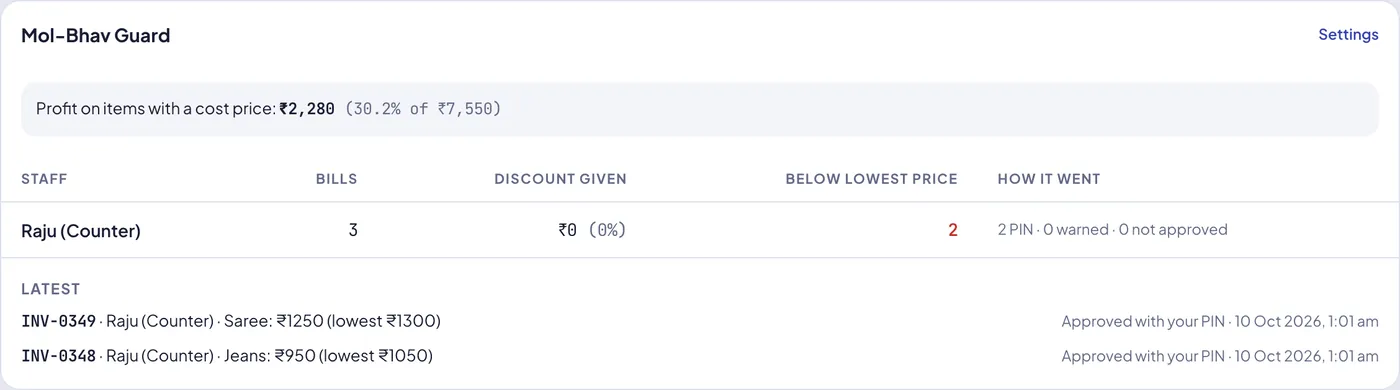
The Mol-Bhav Guard card on the owner’s Overview shows the day, week or month you pick. An example week at a shop with two staff:
| Staff | Bills | Discount given | Below lowest price | How it went |
|---|---|---|---|---|
| Ravi | 64 | ₹3,850 (4.1%) | 3 | 2 PIN · 0 warned · 1 not approved |
| Meena | 41 | ₹5,900 (9.6%) | 6 | 6 PIN · 0 warned · 0 not approved |
Under it: the latest bills that went below a lowest price (bill number, staff, item, price and lowest price), and profit on items with a cost price, for example “₹38,400 (31% of ₹1,23,900), covers 72% of sales” so you know how much of your sales the figure includes. Cancelled bills are left out.
Good to know
- There is one lowest price per item (category). If “Jeans” covers ₹799 and ₹2,499 pieces, split it into two items, such as Jeans and Jeans premium, each with its own lowest price.
- Quick bill and “Other item” lines have no lowest price. The staff discount limit still applies to the whole bill.
- The PIN is typed on the counter phone or computer. Approving from your own phone while you are away is planned, not available yet.
- After five wrong PINs in 15 minutes, PIN entry pauses for a while, so a PIN can’t be guessed at the counter.
- The cost is saved with each bill line when it is sold, so changing a cost later doesn’t change last month’s profit.
- Lowest price, cost, mode, PIN and the discount limit can be set in the app or on the computer. The minimum margin rule and the report are in the web dashboard.
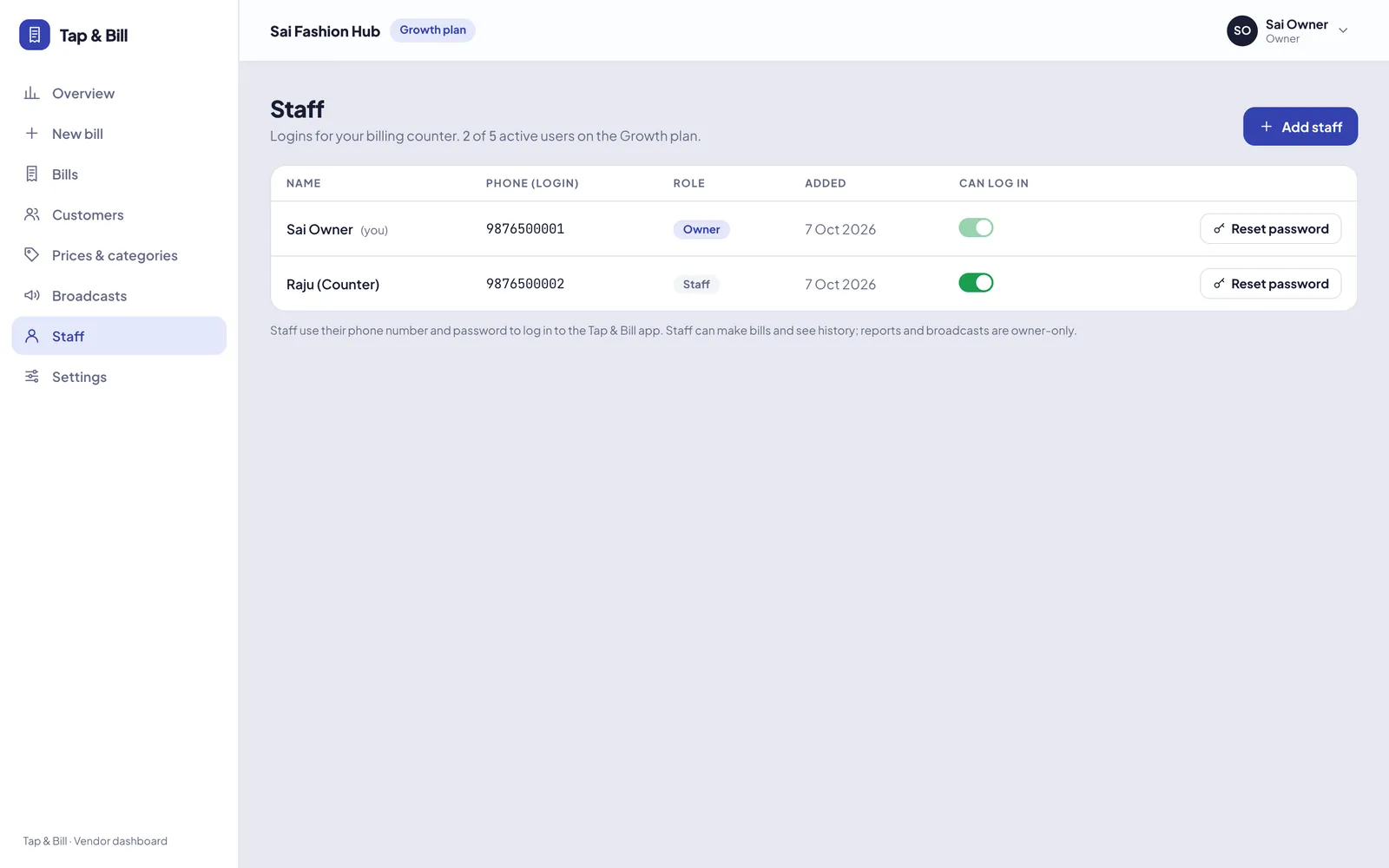
Every bill has a name on it
Mol-Bhav Guard: questions
Can my staff see my cost price?
No. The cost price shows only on the owner login. Staff see the lowest price only when a piece goes below it (“Lowest ₹850”), never your cost or your margin.
What if I am not at the shop?
Today the PIN is typed on the counter phone or computer, so someone at the shop has to type it. On days you are away, switch to Warn staff: bills save with a red warning and every such sale shows in your report with the staff name. Approval from the owner’s own phone is planned. If you tell a trusted manager the PIN, their approvals also show as “PIN”, so change it when that person leaves.
Does it work without internet?
Yes, in the Android app. The app checks the prices on the phone and the owner can type the PIN there. The bill saves and prints as usual, and the server checks it when it syncs. If the rule was broken without the right PIN, the bill is kept (the sale happened) and shows in your report as “Not approved (offline bill)”. The computer version needs internet.
Will it slow down billing?
Not for normal bills: above the lowest price and within the discount limit nothing changes. Only a bill below the lowest price or over the limit stops for the PIN, which takes a few seconds.
Can I turn it off?
Yes. Settings → Mol-Bhav Guard → Off. Your lowest prices and costs stay saved for when you turn it on again, and the profit figure still works for items with a cost price.
Does it stop my own bills?
No. Bills made on the owner login are never stopped or warned. The guard is only for staff logins.
Does Mol-Bhav Guard cost extra?
No. It is part of every plan and has no running cost: there are no SMS or OTP messages, and the PIN is checked by Tap & Bill itself.
See Mol-Bhav Guard on your own prices
We call you within one working day and show Tap & Bill on your own items and prices.
- 10-minute demo on phone or video call
- 14-day free trial, no card
- We set up your categories and prices with you
Prefer to talk now? Call +91 73838 34343 or WhatsApp us.
Stop the loss at the counter
Set your lowest prices on day one. 14-day free trial, no card.