Feature
Staff control: run your shop when you are not at the counter
How can I control my shop staff when I am not at the shop?
Give every staff member their own login, so every bill, discount, cancelled bill, cash count and stock in carries a name. Then let the app hold the rules: a lowest price per item, a staff discount limit, no deleting bills, a blind cash count at closing, and, under Settings → Staff & counter, walk-in bills by default, WhatsApp to customers locked for staff, and stock in with blind shelf counts that never show your cost. You see sales by staff, the galla and the exceptions on your phone or computer from anywhere.
Many shops are run by a manager or a family member for long hours: the owner is at the wholesale market, at a second shop, or at home. The questions are always the same. Did every sale get a bill? Did anyone sell below cost? Is the cash right? Are the pieces on the stand still there? And is the staff member messaging my customers from their own phone?
Tap & Bill answers them from the bills themselves, so nobody has to fill a register. Owner and staff use the same online shop account, the owner sees the same bills from anywhere, and the rules are enforced by the server, not just hidden on the screen.
Staff logins, sales by staff and blind galla counts are on every paid plan from ₹199. The staff & counter settings below are on Starter and up; Mol-Bhav Guard and the stock parts (stock in, labels and shelf counts, with the optional Stock & barcodes) on Growth or Pro.
What you get
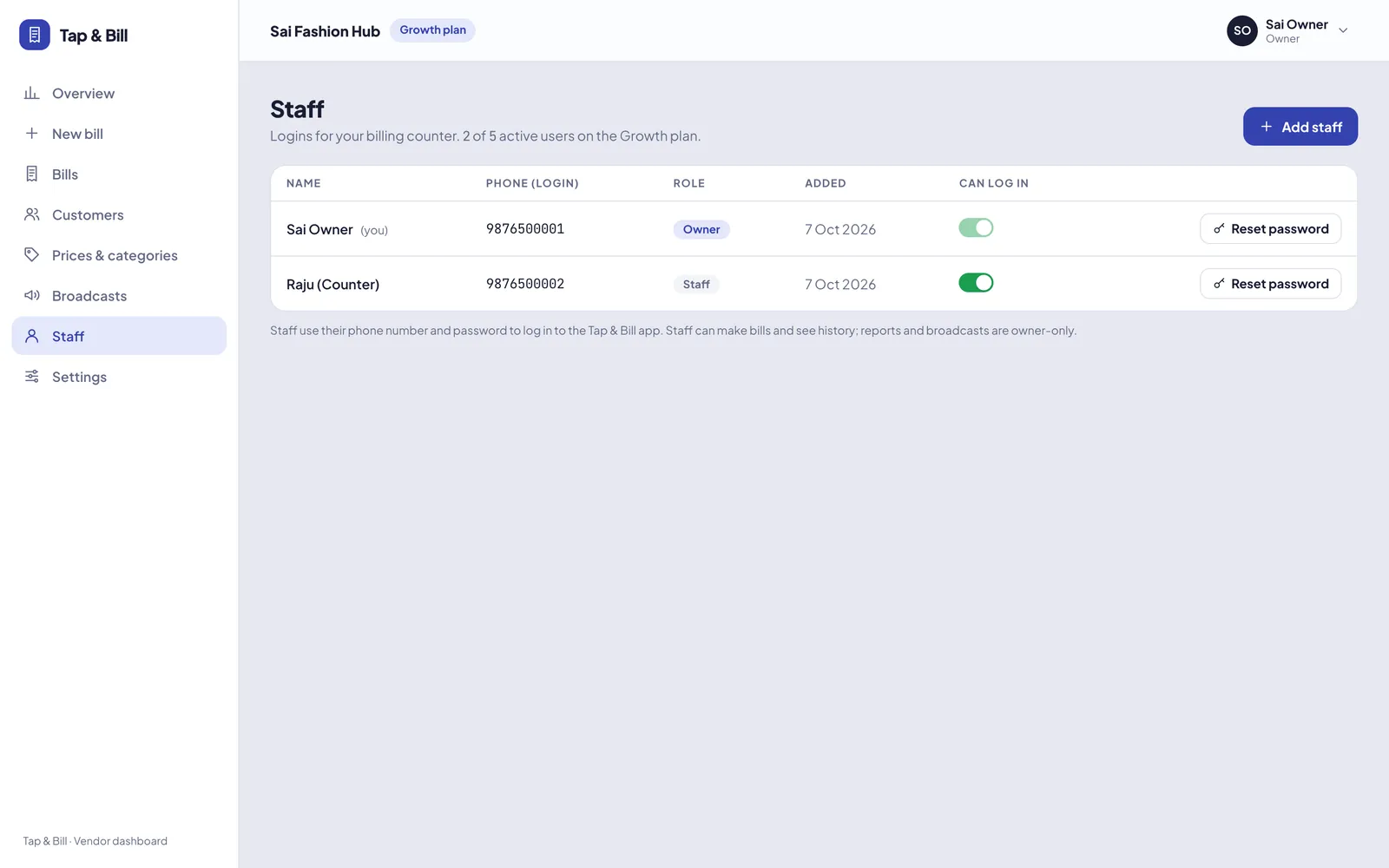
- A login for each staff member; every bill, cancel, galla count and stock in has a name
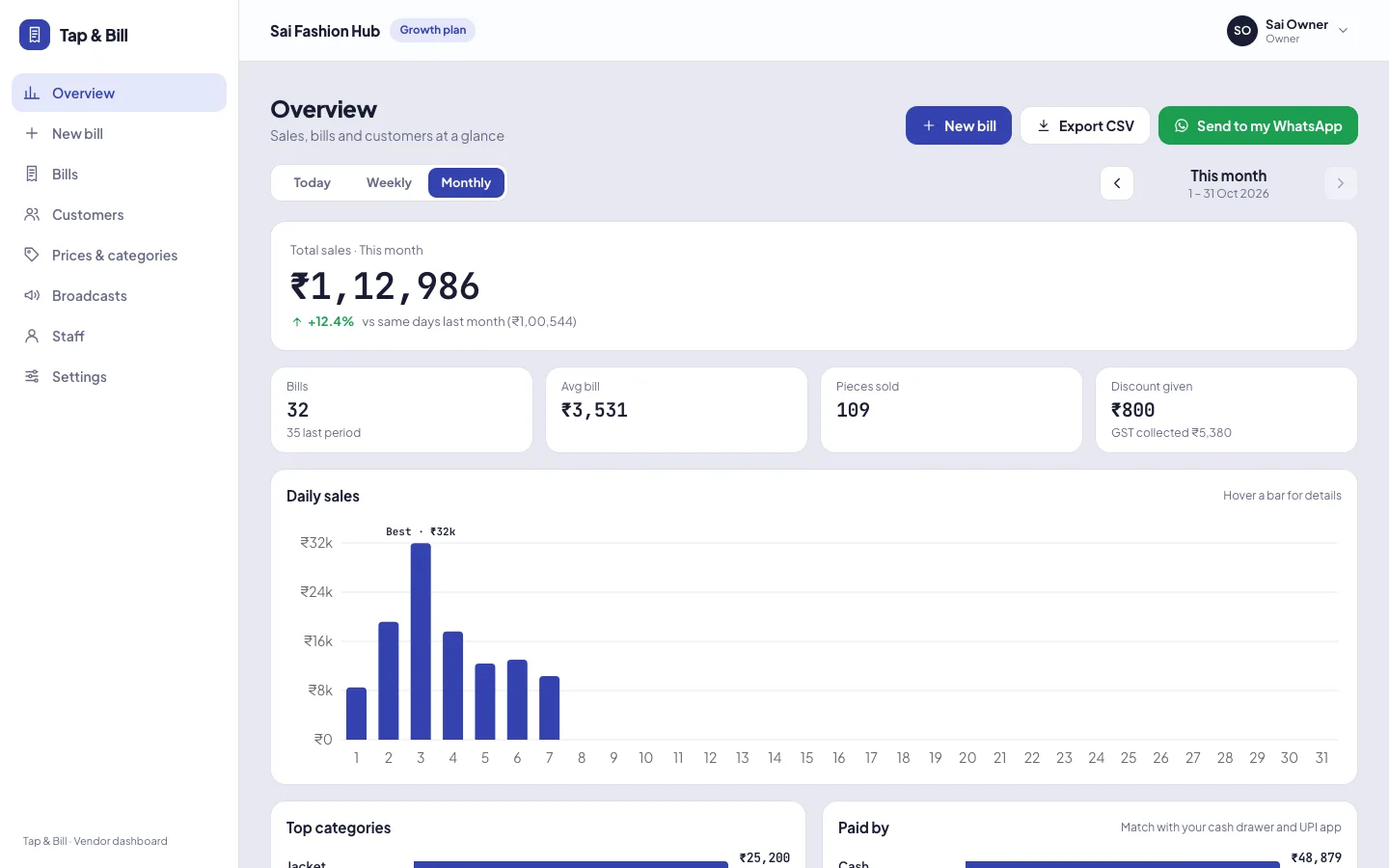
- Sales by staff on the owner’s overview (computer, or the phone’s browser)
- New bills start as walk-in: By shop type, Always or Never
- Staff can send WhatsApp to customers: On or Off (blocked by the server when Off)
- Staff can do stock in and shelf count: On or Off (needs Stock & barcodes)
- Staff never see cost price or margin; a staff stock in never changes your cost
- Only the owner adds designs, changes prices, adjusts stock or cancels a stock in
- Lowest price and staff discount limit with your PIN or a warning (Mol-Bhav Guard)
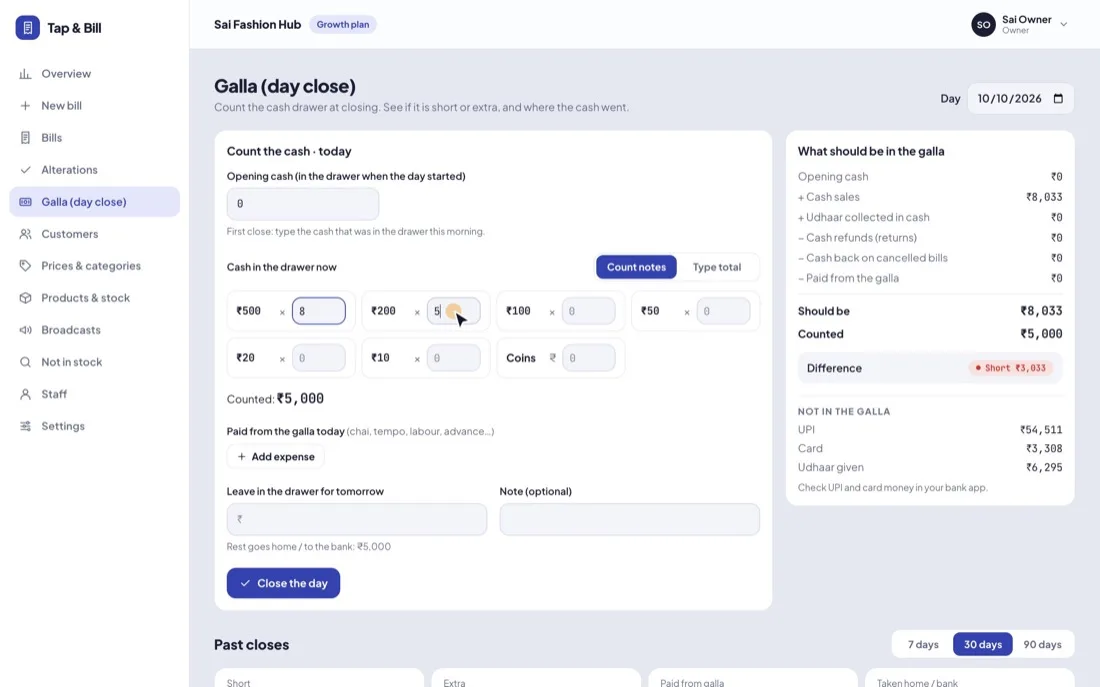
- Blind galla count: you see short or extra, staff don’t see the expected figure
- No bill is deleted: staff cancel only their own bill within 15 minutes, with a reason
- Only the owner edits a saved bill, and the old version stays in its history
- Reports, customer list and settings on the owner login only
How it works
A login for each person
Add staff with their mobile number (Staff logins on the computer, or Staff in the app’s settings). Never share one login.
Set Staff & counter
Settings → Staff & counter (owner only): walk-in by default, staff WhatsApp on or off, staff stock in and shelf count on or off.
Set your lowest prices
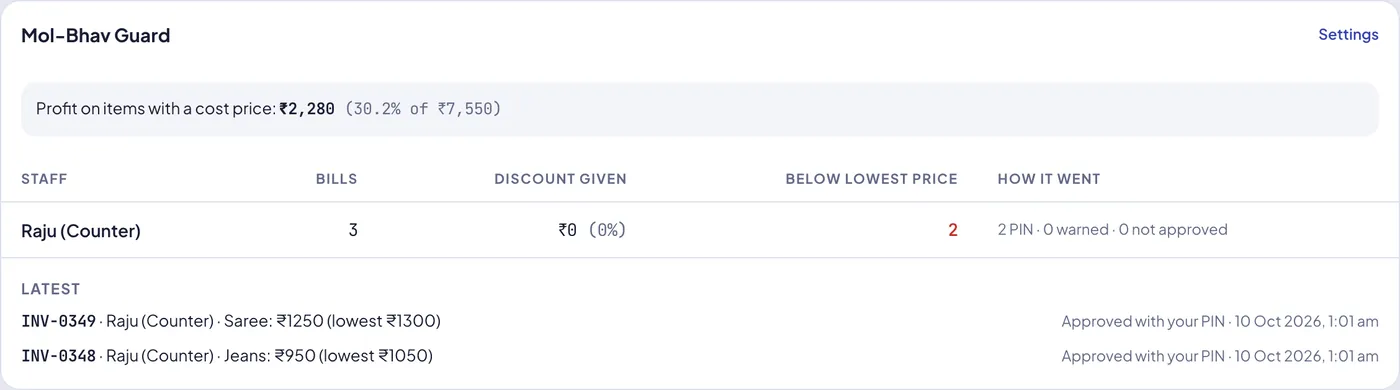
Mol-Bhav Guard: a lowest price per item, a staff discount limit, and Warn staff for days you are away (the PIN is typed at the counter).
Close the day blind
Staff count the galla without seeing what should be there; with stock on, they count shelves the same way.
Check from anywhere
Sales by staff, the Mol-Bhav Guard card, galla short or extra, cancelled bills, and who received or counted stock.
Settings → Staff & counter
This card is on the owner login only, on the computer and in the Android app (in English, Hindi and Gujarati). Staff can never change it. The defaults keep the app working as before, so nothing changes until you choose.
| Setting (as in the app) | Choices | What it does | Plan |
|---|---|---|---|
| New bills start as walk-in | By shop type (default: cafe and kirana start as walk-in), Always, Never | Every new bill starts without a name or mobile number. Staff can still switch it off to add a customer, for udhaar or a customer who wants the bill on WhatsApp. | Starter and up |
| Staff can send WhatsApp to customers | On (default), Off | Off: staff bills are saved and printed but not sent; staff can’t resend a bill, send an udhaar reminder or an alteration “ready” message, and the WhatsApp buttons are hidden. The server refuses it too, so an old app version can’t get round it. You can still send from your login. | Starter and up |
| Staff can do stock in and shelf count | Off (default), On | On: staff receive goods (also from the supplier’s bill on the computer, for designs and sizes you already have), print their labels and count shelves. They never see or type cost, and the count is blind: only you see the differences. | Growth and Pro (Stock & barcodes on) |
Who can do what
| Staff login | Owner login | |
|---|---|---|
| Make bills, hold bills, take UPI, cash, card, udhaar | Yes | Yes |
| Change the rate on one bill | Yes, watched by Mol-Bhav Guard | Yes, never stopped |
| Change default prices | Only if you turn on “Staff can change default prices” | Yes |
| Cancel a bill | Only their own, within 15 minutes, with a reason | Any bill, with a reason |
| Edit a saved bill | No | Yes, up to 30 days, with a reason and history |
| Send WhatsApp to customers | Yes, unless you turn it off | Yes |
| See cost price and margin | Never | Yes |
| Stock in, labels, shelf count | Only if you allow it; count is blind | Yes, with the differences |
| Add designs, change prices, adjust or cancel stock | No | Yes |
| Galla day close | Counts without seeing the expected cash | Sees expected, counted and short or extra |
| Reports, customer list, settings | No | Yes |
What you check from home, and how often
| When | Where | What to look at |
|---|---|---|
| Any time | Phone or computer | Today’s sales, cash vs UPI vs udhaar, and every bill with the name of who made it |
| Every evening | Galla (app or computer) | Short or extra, and who closed the day. On Starter and above, switch on the daily sales report and it also comes on your WhatsApp |
| Once a week | Overview on the computer | Sales by staff; the Mol-Bhav Guard card (discount by staff, sales below the lowest price, PIN or only warned); cancelled bills |
| When stock arrives or is counted | Stock on the computer | Each stock in and shelf count with the name of who did it, and the missing or extra pieces |
| At month end | Salesman incentive report | Each salesman’s bills, pieces, returns, net sales and incentive |
Example: one week at a shop with a manager
An illustration, not a customer story. The owner of a fashion jewellery shop spends three days a week at the wholesale market. The manager, Pooja, has a staff login; a helper, Arif, is a salesman without a login. Settings: walk-in Always, staff WhatsApp Off, staff stock On, Mol-Bhav Guard Warn staff with a 5% discount limit.
| Day | What the owner saw | What the owner did |
|---|---|---|
| Monday | Galla: ₹200 short. Pooja had paid the tea and tempo from the drawer but not written it as an expense. | Asked her to note cash paid out in the galla count; no short on the next days. |
| Wednesday | Mol-Bhav Guard card: three bills above the 5% discount limit, all Pooja’s, all bridal sets. | Set a lowest price on the bridal set designs so the warning shows only when it matters. |
| Friday | Stock in of 120 pieces by Pooja; shelf count of earrings: 2 jhumkas missing. | Checked CCTV for that stand; moved the costliest earrings behind the counter. |
| Saturday | Sales by staff and the incentive report: Arif picked on 41 bills. | Paid his weekly incentive from the report. |
None of this needed a phone call to the shop. More on each check: galla day close, Mol-Bhav Guard, salesman incentive, edit a saved bill.
What it can’t do
- Approve a bill below your lowest price from your own phone: the PIN is typed at the counter. On days away, use Warn staff and read the report.
- Stop a sale that is never billed: no billing app can. Walk-in bills, a WhatsApp bill to customers who want it, the galla count and a weekly look at sales by staff make it hard to hide.
- Stop shoplifting: use CCTV, count pieces into the trial room, and with stock on, count the shelves.
- Check that a UPI payment reached your bank: match the UPI total with your bank app or soundbox.
- Daily attendance punch-in: not included. Staff salary with absent days and advances is on Starter and up.
Shop types where this matters most: imitation jewellery shops, readymade garments, menswear stores and mobile accessories. In Hindi: दुकान में स्टाफ की चोरी कैसे रोकें.
What the owner sees
Staff control (owner away): questions
How do I see staff-wise sales?
Give each staff member their own login. The owner’s Overview on the computer (it also opens in the phone’s browser) shows Sales by staff: each login’s bills and sales for the day, week or month you pick. For salesmen without a login, pick them on each bill and use the salesman incentive report.
Can I stop staff sending WhatsApp messages to my customers?
Yes. Turn off “Staff can send WhatsApp to customers” in Settings → Staff & counter. Staff bills are saved and printed but not sent, staff can’t resend bills or send udhaar reminders, and the server refuses it even from an old app. You can still send from the owner login. It stops messages from the app; it can’t stop someone copying a number from a paper bill, so “walk-in by default” helps if you don’t need numbers.
Can staff do stock in without seeing my cost price?
Yes, with Stock & barcodes on (Growth or Pro) and “Staff can do stock in and shelf count” on. Staff receive goods for designs and sizes you already have, print their labels and count shelves. They never see or enter cost, their stock in never changes your cost price, and only you add designs, change prices, adjust stock or cancel a stock in.
What is a blind shelf count?
Staff scan what is on the shelf and see only what they counted, not what the app expected. When they save, you see the missing and extra pieces. They can’t make the count match the book, so the difference you see is real.
Can I approve a discount from my phone when I am not at the shop?
Not yet. The Mol-Bhav Guard PIN is typed on the counter phone or computer. On days away, set it to Warn staff: such bills save with a red warning and show in your report with the staff name.
Which plan has staff control?
Staff logins and staff-wise sales are on every paid plan from ₹199 (the galla count is on every plan); staff & counter settings from Starter (₹499); Mol-Bhav Guard and salesman incentive on Growth and Pro. The number of staff logins depends on the plan (Basic 1, Starter 2, Growth 5, Pro 20). Stock in and shelf counts by staff need Stock & barcodes on Growth or Pro.
Can staff delete a bill?
No. Nobody can delete a bill. Staff can cancel only their own bill within 15 minutes, with a reason; the cancelled bill stays in history with its number. Only the owner can edit a saved bill, and the old version is kept.
See staff control on your own shop
We call you within one working day and show Tap & Bill on your own items and prices.
- 10-minute demo on phone or video call
- 14-day free trial, no card
- We set up your categories and prices with you
Prefer to talk now? Call +91 73838 34343.
Know what happens at the counter
Staff logins on every paid plan; counter settings from Starter. 14-day free trial, no card.