Guide
How to add items to a billing app fast (without typing them one by one)
How do I add many items to a billing app at once?
Don’t fill a form for each item. In Tap & Bill, open Paste a list and type or paste one item per line, such as “Shirt 499” or “Jeans - 899” (or speak it with your phone keyboard’s mic). The app reads each name and price, shows them with tick boxes and saves them all in one tap. A new shop can start from a ready item pack for its shop type; a printed rate list or supplier bill can be read from a photo or PDF on the computer; hundreds of items come in from Excel or CSV. Most shops have their items in about 2 minutes.
No card · no ads in the app · your bills, customers and udhaar stay yours: nothing is deleted if you stop paying
Which way fits your shop
| What you have | Fastest way | Where |
|---|---|---|
| Prices in your head, or a list on WhatsApp or in notes | Paste a list (type, paste or speak) | Android app and computer |
| A new shop and no list | Ready item pack, then edit prices | Tap & Bill app |
| A printed rate list, price board or supplier bill | Photo or PDF | Dashboard on a computer (or the phone browser) |
| An Excel file, or an item list exported from Vyapar or myBillBook | Excel / CSV import, hundreds of items at once | Computer, owner login |
| A new item turns up while billing | “Other item” or Quick bill: after 2 bills the app offers to make it a tile | While billing |
You can mix them: a ready pack on day one, then your own list pasted in, and anything missed gets added while you bill. None of these uses an AI service, and there is no extra charge for them.
1. Paste a list: four steps
Pick the way that fits what you have
Prices in your head or on WhatsApp: Paste a list. New shop: a ready item pack. A printed rate list or supplier bill: photo or PDF. An Excel file: Excel import.
Paste, type or speak the list
One item per line, name then price: “Shirt 499”, “Jeans - 899” or “Kurta ₹650”. Hindi and Gujarati digits work too. Use the mic on your phone keyboard to speak it.
Check the preview
The app reads the name and price from each line and shows them with tick boxes. Untick any line you don’t want.
Save all in one tap
Every ticked item becomes a tile on the billing screen. Change prices later any time.
How the app reads each line:
| You type | Item name | Price |
|---|---|---|
| Shirt 499 | Shirt | ₹499 |
| Jeans - 899 | Jeans | ₹899 |
| Kurta ₹650 | Kurta | ₹650 |
| कुर्ती ५९९ (Hindi digits) | कुर्ती | ₹599 |
| સાડી ૧૨૦૦ (Gujarati digits) | સાડી | ₹1,200 |
- One item per line, name first, then price. A list someone sent you on WhatsApp can be copied and pasted as it is.
- Speak it: tap the mic on your phone keyboard (Gboard and most keyboards have one), say “Shirt 499”, press the keyboard’s Enter, then the next item. Hindi works too.
- Printing on a thermal printer? Keep item names in English letters (Shirt, Kurti). Thermal receipts print in English, and Hindi or Gujarati letters come out as “?”; the PDF and WhatsApp bill show them fine. If you speak in Hindi, the keyboard writes Devanagari, so set its voice language to English (India) for receipt names.
- Before you save, untick any line that came out wrong. You can change any price later.
Ready lists to copy, edit and paste
Example prices: put your own.
Menswear list
Shirt 799 T-Shirt 449 Jeans 1199 Trouser 999 Kurta 899 Blazer 2999 Belt 299 Socks 99
Ladies wear list
Kurti 699 Leggings 299 Palazzo 499 Top 549 Dupatta 349 Saree 1499 Night Suit 599
Tea stall / cafe list
Chai 15 Coffee 25 Samosa 20 Vada Pav 25 Sandwich 60 Cold Coffee 60
2. Ready item packs by shop type
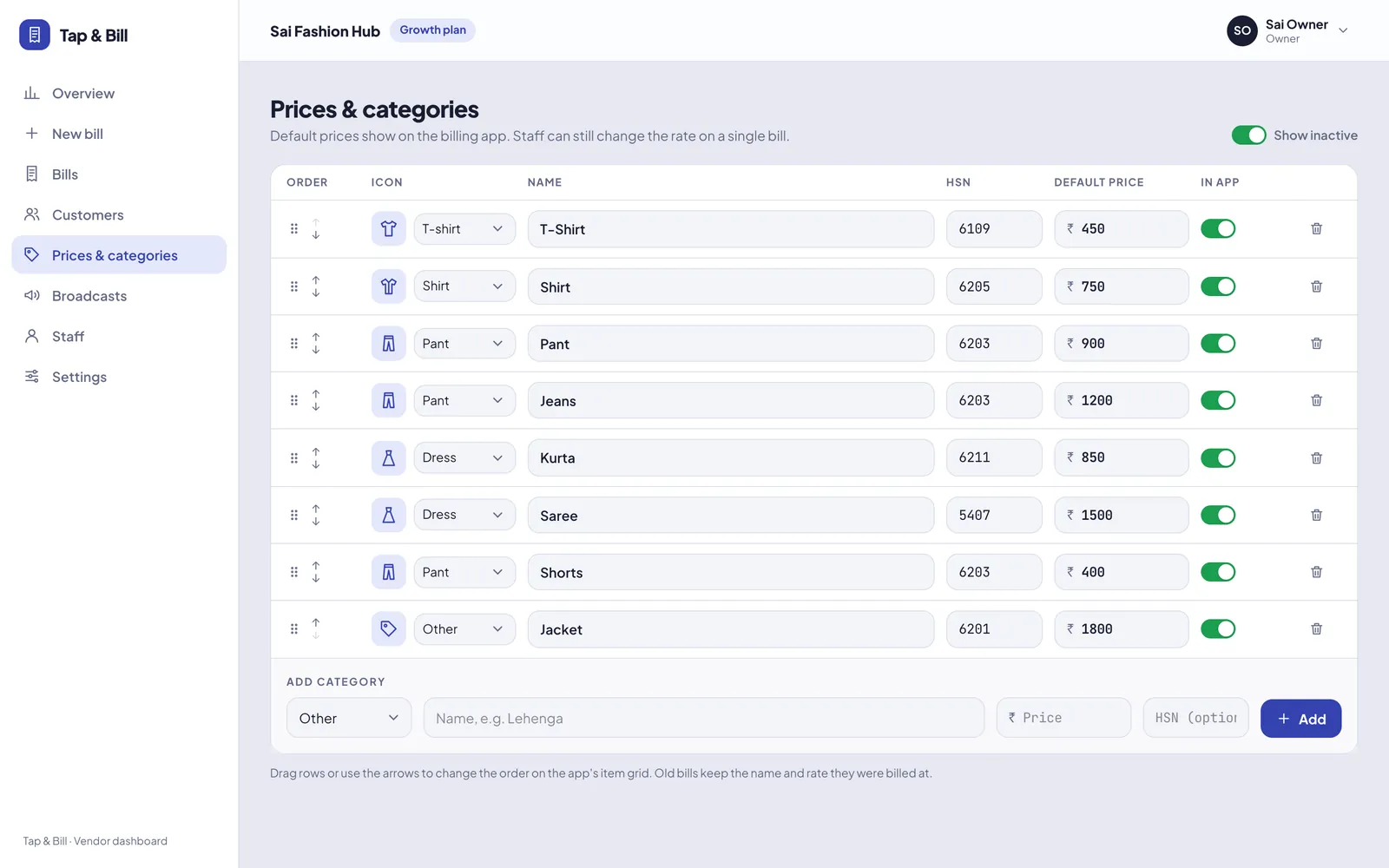
No time to write a list? Add the pack for your shop in one tap, then set your prices. Packs: Menswear, Ladies wear, Saree & dress material, Kids wear, Innerwear, Footwear, Imitation jewellery, Kirana / general store and Cafe. Pack prices are only a starting point; remove what you don’t sell. (Every new shop already gets a few starter items for its type at sign-up, for a clothing shop eight such as T-Shirt ₹450, Shirt ₹750 and Jeans ₹1,200; a pack is the fuller list.)
3. From a photo or PDF of a rate list, price board or supplier bill
Open the Tap & Bill dashboard on a computer (or in your phone’s browser) and choose a photo or PDF of a printed rate list, your price board or a supplier bill. The dashboard reads the printed text in the browser and turns it into items and prices. It is text recognition (OCR), not AI, and it is on every paid plan, Basic at ₹199 included.
- Works best on printed lists and bills, photographed straight, in good light, one page at a time. A PDF reads better than a photo.
- Less reliable on handwriting, and blurred, tilted or shadowed photos. For a handwritten list, speaking it into Paste a list is often quicker.
- Check before saving. A supplier bill shows your buying price; set your own selling price.
This creates items (tiles). Adding stock from a supplier bill, piece by piece in sizes and colours, is a separate part of Stock & barcodes on Growth and Pro. To record the supplier bill itself (bill no, date, total, GSTIN) and what you owe, use the purchase bill scanner in Supplier bills & cheques, on every paid plan.
4. Import items from Excel or CSV (computer)
Get the file ready
Export the item list from your old app to Excel, or fill in our free rate list below. Needed: item name and selling price.
Open the import
In the web dashboard: Prices & categories → Import from Excel → Items & prices → Choose file.
Match the columns
Tap & Bill guesses the name, price, HSN, GST %, lowest price and cost columns; change any that look wrong.
Check and import
“Check rows” saves nothing: it shows what will be added and why any row was skipped. Then import.
Excel (.xlsx) or CSV, first sheet only: items up to 1,000 a file, customers up to 10,000 rows. A shop can have up to 10,000 items. Old .xls files: open them in Excel and save as .xlsx. To change prices of items you already have, keep “Update items already in Tap & Bill” on. Customers with their udhaar balance come in from the same page.
Free rate list (price list) format in Excel
A rate list needs two columns: item name and selling price. Our free file has them, with optional HSN, GST %, lowest price and cost price columns, 15 example items and a “How to fill” sheet. Print it for the counter, or import it into Tap & Bill as it is.
Rate list (English) · Excel · 6 KB · रेट लिस्ट (हिंदी) · Excel · 6 KB
- Prices as plain numbers (799), without ₹ or “Rs”.
- Clothing shops on the clothes rule (5% up to ₹2,500 a piece, 18% above) leave GST % empty: the app picks 5% or 18% for each piece. Fill it only for items with their own rate. Confirm HSN codes with your CA.
- Printing it for customers? Hide the lowest price and cost price columns first.
- Keep the column titles row as it is if you want to import the file.
5. Let items add themselves while you bill
You don’t need every item on day one. If something isn’t on your list, bill it with Other item or the Quick bill keypad (name and amount). When the same item has been typed on 2 bills, the app offers to make it a tile, so the next bill is one tap. Over a few days your real selling list builds itself.
How Vyapar, myBillBook and Khatabook add items
People often search “how to add bulk items in Vyapar app”. Here is only what their own pages say:
| App | Many items from Excel | From a photo or scan | Seen |
|---|---|---|---|
| Vyapar | Yes: Utilities → Import Items with their sample Excel file. Changing prices or GST of many items together (Bulk Item Update) is in the desktop version only | Not found on their pages | vyaparapp.in, 22 October 2026 |
| myBillBook | Yes: Items → Bulk Upload, up to 5,000 items per file | Purchase bills through “Scan and Record Bills” (Mira AI in their words), on mobile and web | mybillbook.in, 22 October 2026 |
| Khatabook | A bulk import from Excel is not listed on the pages we checked | Not listed | khatabook.com, 9 October 2026 |
| Tap & Bill | Yes: Import from Excel, up to 1,000 items a file, every row shown before saving | Yes: items from a photo or PDF of a rate list, price board or supplier bill, read in the browser, every paid plan. Plus Paste a list and ready packs | This page |
Big catalogue: 1,000 or 2,000+ items
Kirana, footwear, cosmetics and large garment stores often have thousands of items. Tap & Bill has up to 10,000 items on every plan. Item tiles come in a small size by default on the computer (a Small / Big switch on the app and the computer), so many more fit on one screen, and the tiles load in batches, so the bill screen stays fast with 2,000 items or more. Type a few letters to find any item; with Stock & barcodes (Growth and Pro) a barcode scan finds it too. Too many tools on screen as well? Hide the ones you don’t use in My tools.
How many items to start with
- Clothing shops: categories, not every design: Shirt, Jeans, Kurti, Saree. The bargained rate changes on the bill, and size and colour go on the bill line.
- Start with your 10–20 best sellers; the rest get added while you bill.
- GST bills? Add the HSN to each category once (Prices & categories on the computer). See HSN codes for clothes.
- Staff bargaining too low? Give items a lowest price: Mol-Bhav Guard.
What it can’t do: photo reading is best on printed text and makes mistakes on handwriting, so check before saving; photo / PDF and Excel import are on the dashboard (computer or phone browser), not in the Android app; speaking a list uses your phone keyboard’s voice typing, and Tap & Bill does not make a whole bill by voice; old bills from another app are not imported, only items and customers. Items in place? Watch how a bill is made or start the 14-day free trial.